
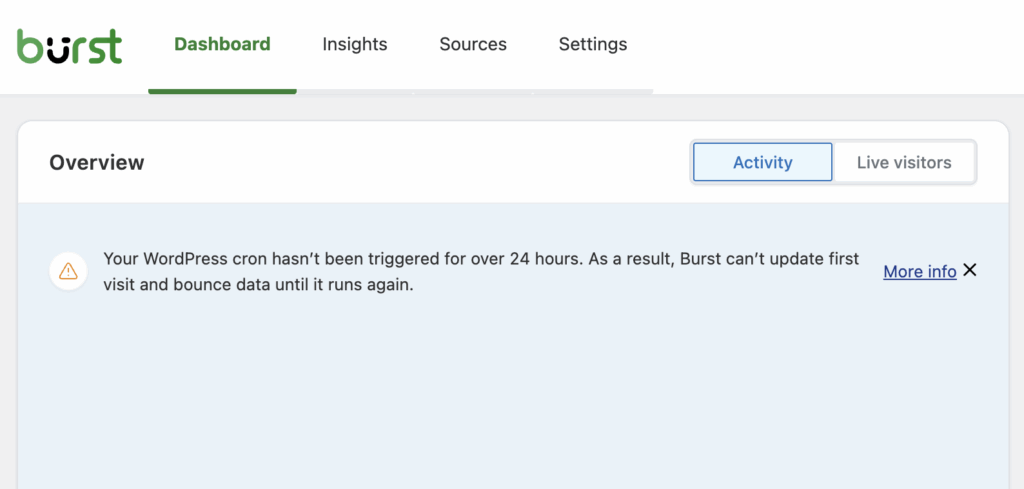
If you’re seeing a notice in Burst saying your cron hasn’t run in over 24 hours, you’re in the right place to learn how to fix the WordPress cron issue. This is a common WordPress issue, not just a Burst-specific one and it’s usually straightforward to fix.
This guide will walk you through what the WordPress cron (WP-Cron) is, why it sometimes fails and how to fix the WordPress cron issue to get it working reliably again. Click here to jump straight to fixing the WordPress cron.
A quick heads-up: some of the steps can get a bit technical. If you’re not comfortable editing server settings or core WordPress files, the best and safest first step for fixing the WordPress cron issue is to contact your hosting provider. They can usually solve this for you in a few minutes.
What is the WordPress cron?
The WordPress cron, or WP-Cron, is WordPress’s built-in scheduler. Think of it as an internal clock that handles time-based tasks. It does things like:
- Publishing scheduled posts
- Checking for theme and plugin updates
- Sending email notifications
- Cleaning up old data
In Burst, WP-Cron is used for background tasks like updating the new visitor and bounce data. When it doesn’t run, that data can become outdated, illustrating a classic WordPress cron issue.
Why the WordPress cron sometimes fails
There are a few different reasons the WordPress cron (WP‑Cron) might stop running, but most issues come down to how it’s configured or how your cache behaves.
The most common cause is having DISABLE_WP_CRON set to true in your wp-config.php, without a proper server‑side cron job configured, or one that runs too infrequently. In that case, WordPress isn’t triggering scheduled tasks at all. We recommend setting up a server‑side cron to call your wp-cron.php every 5 minutes for high‑traffic sites, or at least once per hour for lower‑traffic ones.
Another frequent cause is the opposite: not having DISABLE_WP_CRON set to true while using a caching plugin that serves most of your pages from cache. Because cached pages often bypass PHP completely, the WP‑Cron process never gets triggered. In that case, disabling the internal cron and setting up a real server‑side cron job is the best solution.
Finally, if your site receives little or no traffic, WP‑Cron might simply have no opportunity to run. Since it’s only triggered when someone visits your website. A server‑side cron job also solves this problem, as it ensures tasks run on time regardless of visitor activity.
The simplest way to fix the WordPress cron
For most people, the quickest and safest solution for resolving the WordPress cron issue is to ask your hosting provider for help. They have access to your server environment and can set up a proper, reliable cron job for you.
You can send them a short message like this:
Hello,
My WordPress site’s internal cron (WP-Cron) is not running reliably. Can you please help me disable the default WP-Cron and set up a real server-side cron job to trigger
https://yourwebsite.com/wp-cron.phpevery 5 minutes?Thank you.
Remember to replace yourwebsite.com with your actual domain name.
Fix the WP cron issue yourself: setting up a server cron job
If you are comfortable with server settings, you can fix this yourself by replacing the default WP-Cron with a real server cron job. This is a two-step process.
Step 1: Disable the default WP-Cron
First, you need to tell WordPress to stop triggering its own cron on page visits. You do this by adding a line to your wp-config.php file.
- Connect to your website using an FTP client or your host’s file manager.
- Find the
wp-config.phpfile in your WordPress root directory. - Important: Before editing, make a backup of this file.
- Open the file and add the following line just before the line that says
/* That's all, stop editing! Happy publishing. */:define('DISABLE_WP_CRON', true); - Save the file and upload it back to your server.
- This prevents WordPress from running its less-reliable scheduler. Now, you need to create a new one.
Step 2: Create the new cron job in your hosting panel
Most hosting providers use a control panel like cPanel or Plesk to address how to fix the WordPress cron issue. The instructions below are for cPanel, which is common, but the process is similar on other panels.
- Log in to your cPanel account.
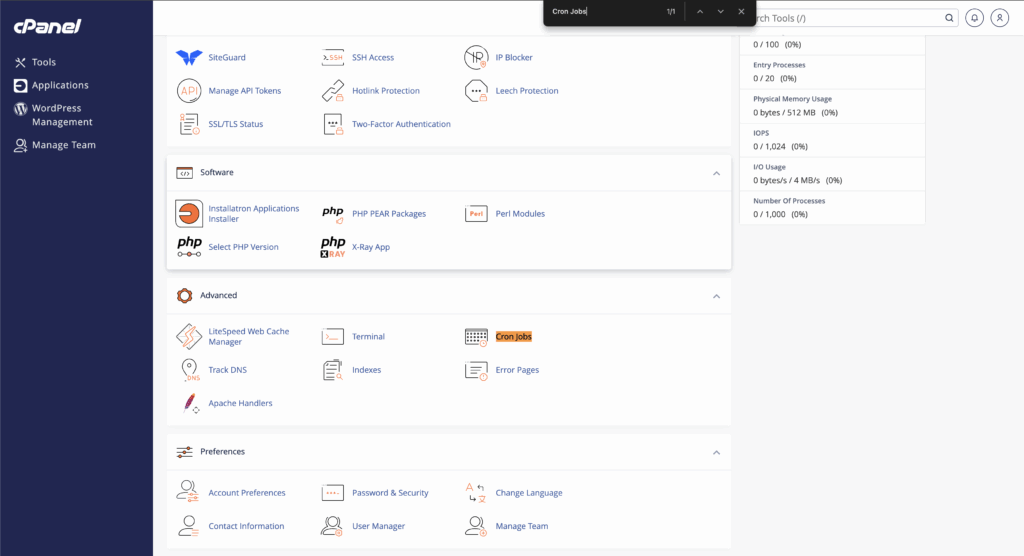
- Find the “Advanced” section and click on the “Cron Jobs” setting.
- Find the PHP command example at the top of the page.
You’ll usually see something like this:/usr/local/bin/php /home/username/public_html/path/to/cron/script
This example shows you how to correctly reference files on your server.
Copy that command as a starting point. It ensures you’re using your host’s correct PHP path and local file structure. - Modify the example to point to your site’s wp-cron.php file.
Replace the example path with your own WordPress path.
For most installations, it will look like:/usr/local/bin/php -q /home/username/public_html/wp-cron.php > /dev/null 2>&1
If WordPress is installed in a subfolder, adjust the path accordingly, for example:/usr/local/bin/php -q /home/username/public_html/wordpress/wp-cron.php > /dev/null 2>&1
Tip: Always use the local file path instead of the full URL (like https://example.com/wp-cron.php).
Direct file paths are faster, more reliable and won’t be blocked by security plugins or firewalls that can prevent external requests.
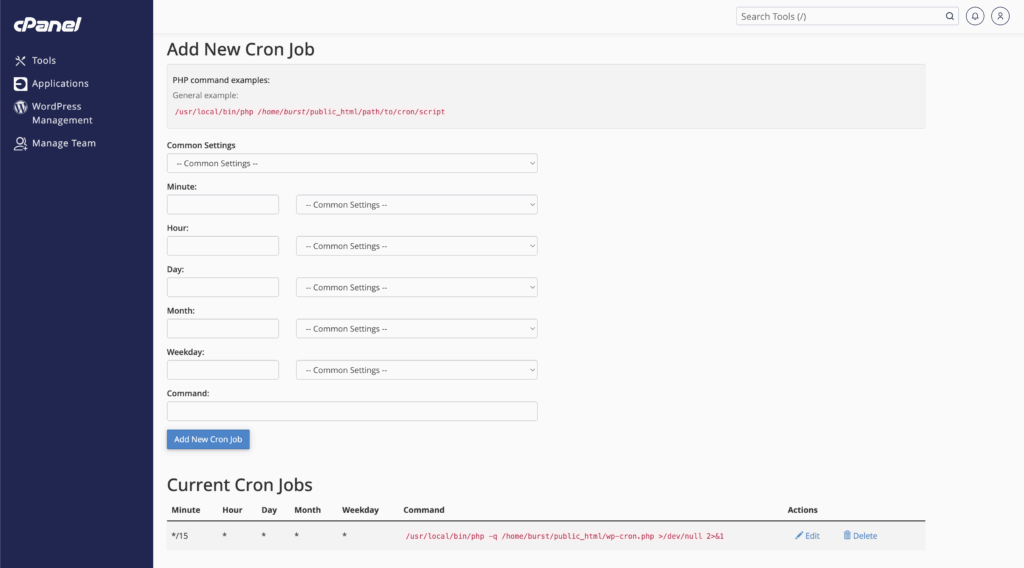
- Set how often it should run. Under Add New Cron Job, choose the schedule for the task:
- Every 5 minutes for high‑traffic sites
- Every 15 minutes for smaller or low‑traffic sites
You can select this from the “Common Settings” dropdown, or manually set the interval using */5 in the Minute field.
- Click the “Add New Cron Job” button.
That’s it. Your server will now trigger WordPress’s cron tasks at a reliable interval, regardless of whether your site has visitors.
How to know if the WordPress cron is working
After a short while, the notice in Burst Statistics should disappear.
If you want to be certain everything is working correctly after fixing the WordPress cron issue, you can install a free plugin like WP Crontrol. It gives you a detailed view of all scheduled events and when they are next due to run.
A healthier site overall
Fixing the WordPress cron isn’t just about making a notice go away in Burst. It ensures all time-sensitive tasks on your site, from scheduled posts to backups and updates, run on time.
Setting up a server-side cron job makes your website more reliable and can even slightly improve performance, as WordPress no longer has to check for scheduled tasks on every page load. It’s a small change that contributes to a healthier website.